Just a test
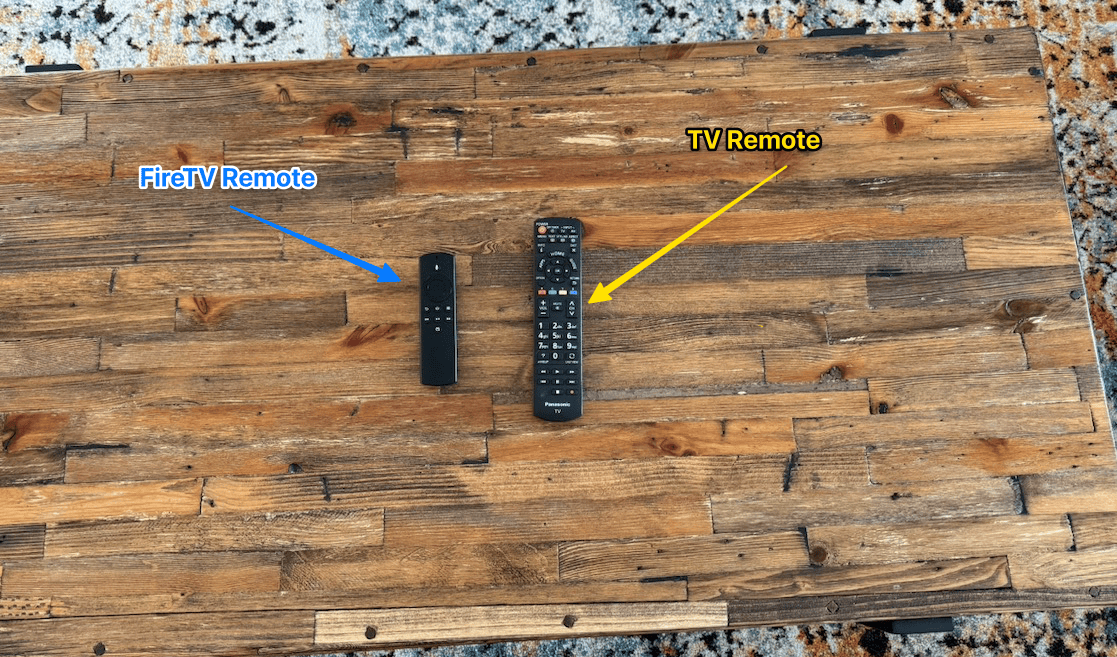
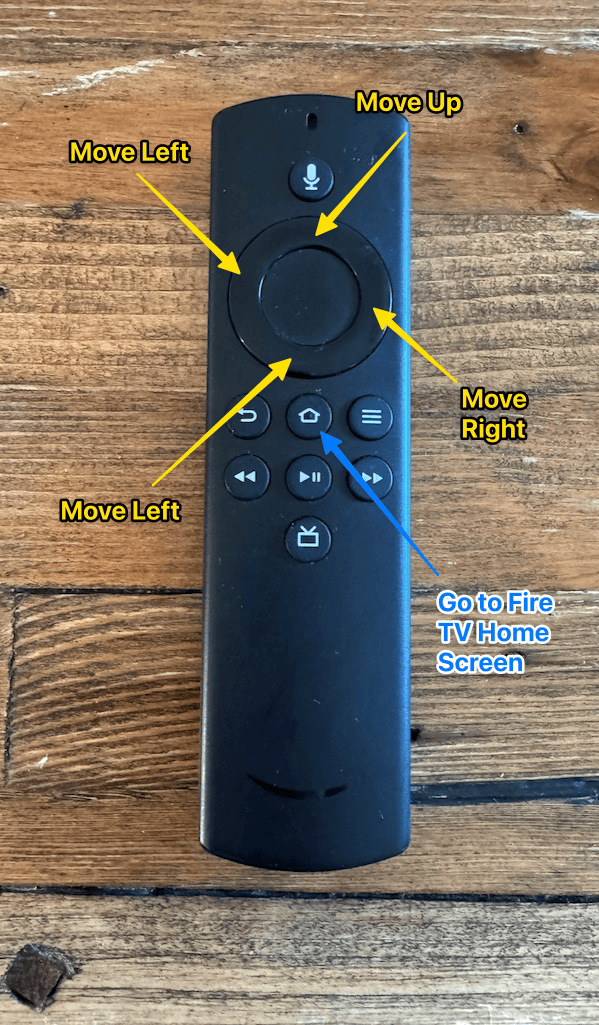
If you'd like to watch television, you can use the regular TV remote. To access the smart TV features, please use the Fire TV remote.
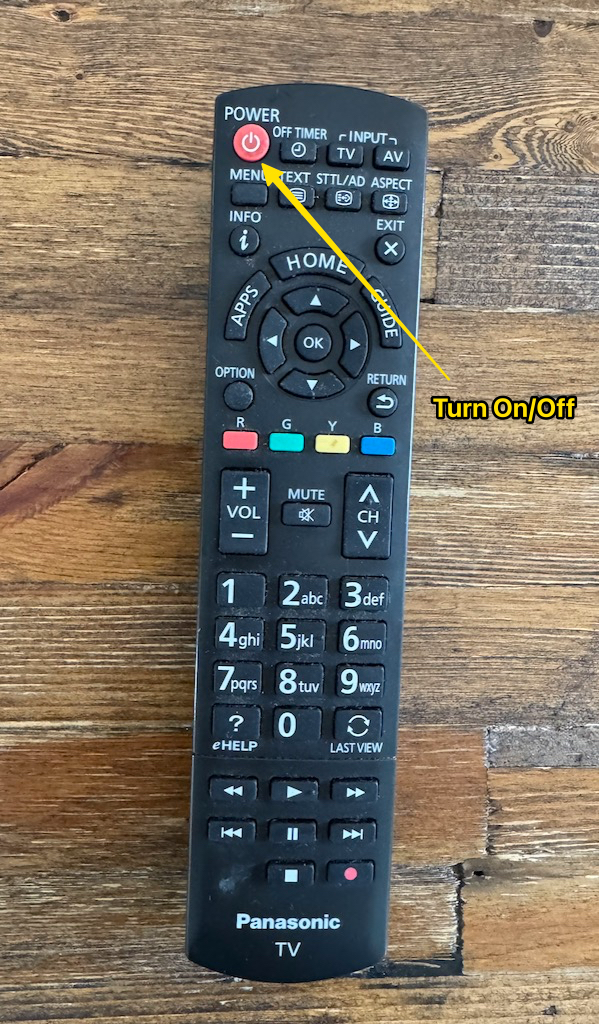
Press the red Power button at the top left of the remote to turn the TV on or off.
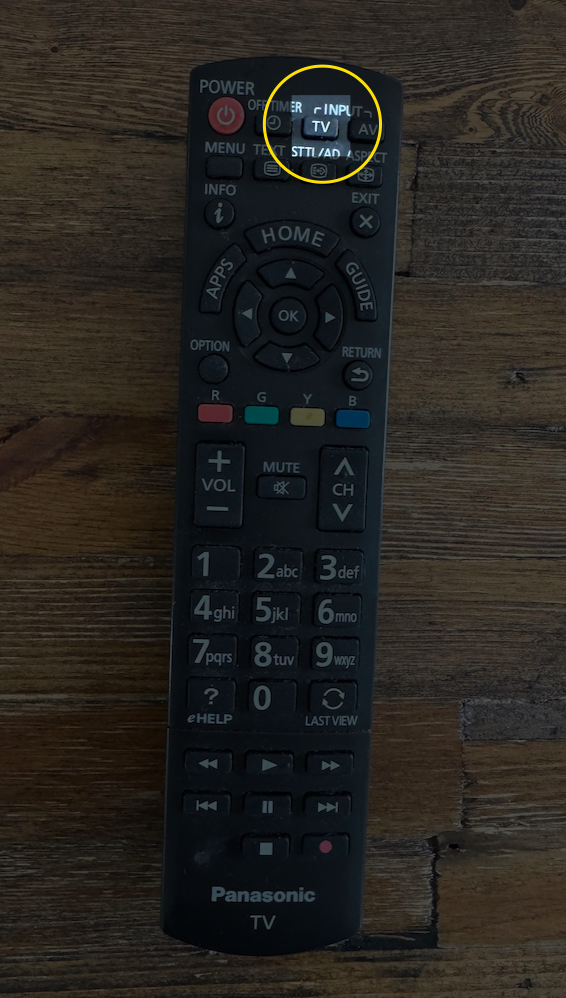
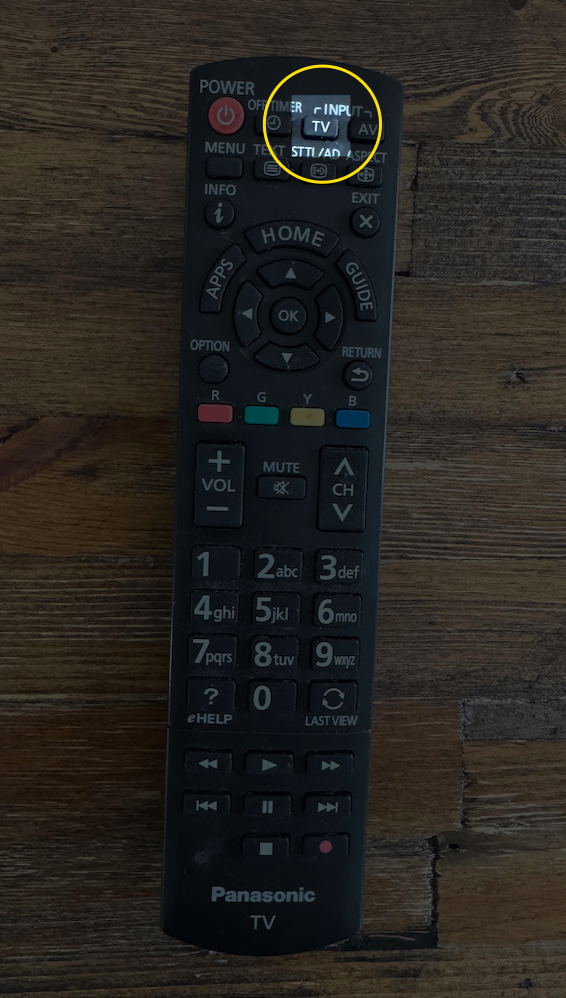
Press the TV button on the remote to switch to free-to-air television.
To access smart TV apps such as Apple TV, Netflix, and YouTube, press the AV button on the remote.
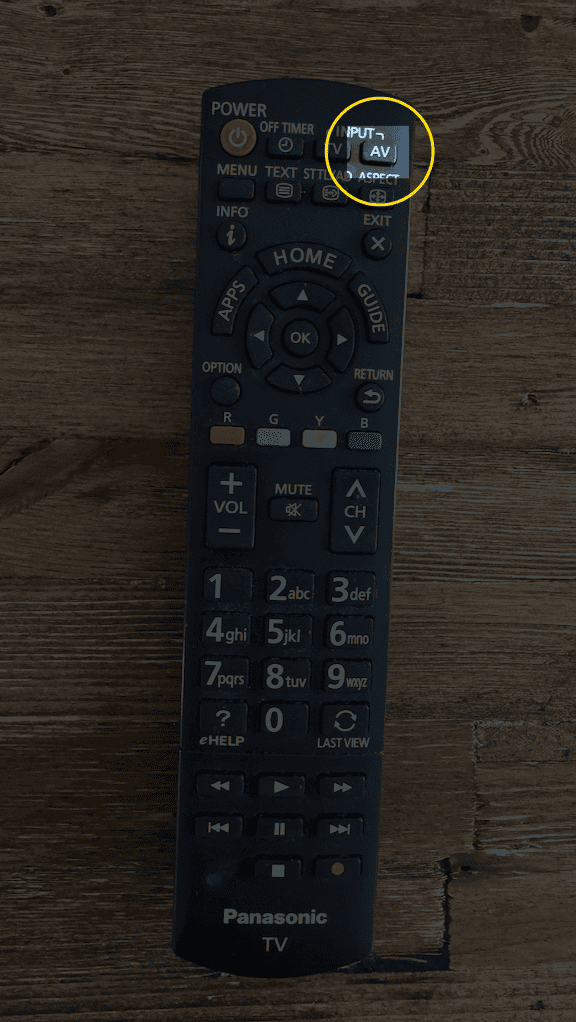
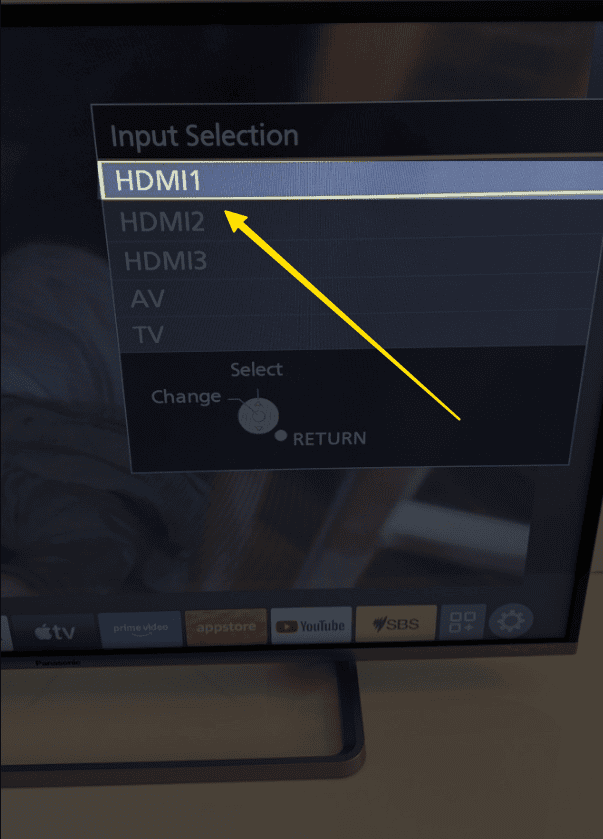
When the TV displays the available input options, select HDMI 1.
Use the FireTV remote to navigate and watch your favourite shows.
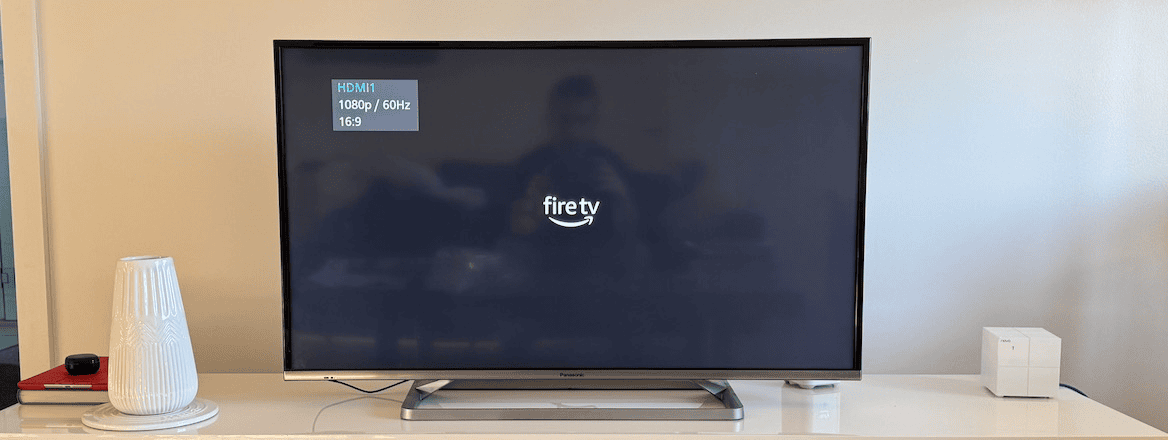
The TV will now switch to the FireTV
To return to regular free-to-air TV at any time, simply press the TV button on the TV remote.